How to set up an AI scheduling assistant for SMEs


Manual scheduling quietly consumes a disproportionate share of your working day. Back-and-forth emails to confirm availability, double-booked slots, and forgotten follow-ups are not minor inconveniences. For SME owners and team leads, they represent real productivity losses compounded across every week. When you set up an AI scheduling assistant correctly, you recover that time and redirect it to decisions that actually move the business forward. This article walks you through exactly how to do that, from prerequisites to advanced configuration, with practical guidance calibrated for SMEs rather than enterprise IT departments.
Table of Contents
- Key takeaways
- Before you set up an AI scheduling assistant
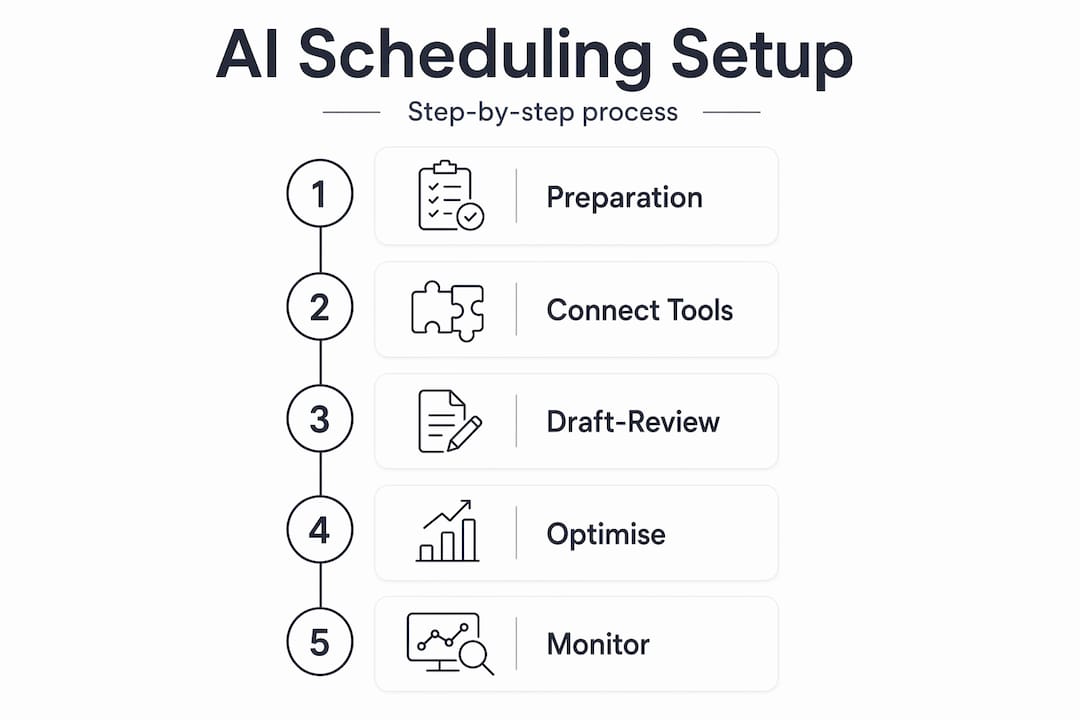
- Step-by-step setup for your AI scheduling assistant
- Advanced features and optimisation
- Verifying performance and troubleshooting
- My perspective on AI scheduling adoption in SMEs
- Work with Meethayat to deploy your AI scheduling assistant
- FAQ
Key takeaways
| Point | Details |
|---|---|
| Preparation is non-negotiable | Audit your current calendar and email workflow before connecting any AI tool to avoid replicating bad habits at speed. |
| Authentication is the first technical step | Google OAuth and API key configuration are the standard entry points when you set up an AI scheduling assistant. |
| Start with draft-review mode | Let the AI propose meeting responses and edits before it sends anything autonomously, protecting your professional tone. |
| Memory features unlock real value | AI tools with persistent memory can handle multi-day scheduling workflows without constant supervision. |
| Periodic reviews maintain accuracy | Revisit your configured preferences quarterly to keep the assistant aligned with how your business operates. |
Before you set up an AI scheduling assistant
The single biggest mistake SME owners make is skipping the preparation phase. You connect a tool, it starts doing things, and two weeks later you are untangling a mess of conflicting calendar entries because the AI did not understand your constraints.
Before you create an AI scheduling tool of any kind, spend an hour answering three questions. First, which calendar platform are you actually using day-to-day? Google Calendar and Microsoft Outlook are the two dominant choices, and most best AI scheduling assistants integrate with both, but the configuration path differs. Second, how does scheduling currently flow through your business? Is it driven by inbound email requests, a booking link, or internal team coordination? Third, who else needs access? A single-user setup is far simpler than configuring an assistant to handle scheduling across a team of eight with varying availability rules.
Data privacy and security
This point is frequently underweighted by small business owners who are eager to move fast. When you connect an AI assistant to your calendar and email, you are granting it read and write access to sensitive business correspondence. Secure setup involves OAuth flows, API keys, and optionally self-hosting your AI scheduler to keep scheduling data under your direct control rather than on a third-party server.
Review the privacy policy of any tool you adopt. US-based SMEs operating in regulated sectors (healthcare, legal, financial services) face additional obligations regarding where calendar and meeting data is stored and processed. If in doubt, consult your legal adviser before granting broad email access.
Pro Tip: Export three months of your sent email and calendar events before onboarding any AI tool. Some assistants analyse your recent history to learn your scheduling style automatically. Having that data ready in a clean format speeds up the bootstrapping phase significantly.
The table below summarises the typical technology you will need in place:
| Requirement | Details |
|---|---|
| Calendar platform | Google Calendar or Microsoft Outlook with admin access |
| Email account | The same account that receives meeting requests |
| API credentials | OAuth 2.0 tokens or API keys from the AI provider |
| AI assistant tool | Cloud-hosted or self-hosted depending on your privacy requirements |
Step-by-step setup for your AI scheduling assistant
Once your preparation is complete, the actual setup follows a clear sequence. Here is how to configure a virtual assistant for scheduling in practical terms.
-
Create your account and authenticate. Register with your chosen AI scheduling platform and complete the OAuth authentication flow. Standard setup scripts require Google OAuth or Microsoft identity platform credentials. You are granting the assistant permission to read your calendar and, where relevant, your inbox.
-
Connect your calendar and email. Link the specific calendar and email accounts the assistant will manage. Most tools let you specify which calendars are in scope. If you have personal and business calendars merged in one account, isolate the business calendar during this step to prevent the assistant from scheduling across personal commitments.
-
Let the AI bootstrap its understanding. Many tools learn from two months of email and calendar history during onboarding, automatically extracting your scheduling preferences, typical meeting lengths, and working hours without requiring you to write rules manually. This is worth enabling rather than skipping, because it significantly reduces the configuration effort.
-
Configure your constraints manually where needed. Even with automated bootstrapping, you should verify and supplement what the AI has inferred. Set your hard boundaries explicitly: no calls before 9am, no back-to-back meetings longer than 90 minutes, protected deep-work blocks on Tuesday and Thursday mornings, and so on. The more specific you are here, the more accurately the assistant will represent your availability.
-
Test with sample meeting requests. Send the assistant a realistic but low-stakes scheduling request, such as requesting a 30-minute call with a contact later in the week. Observe how it extracts scheduling data from emails and proposes times. Check whether the proposed slots respect your constraints and whether the reply tone matches your professional standards.
-
Review and iterate before going live. Most issues surface during testing rather than production. Common problems include the assistant proposing slots that conflict with external commitments it cannot see (travel, off-site meetings), and reply tone that is either too formal or too casual for your client relationships.
Pro Tip: Keep the assistant in draft-review mode for the first two weeks. Draft-only modes mean the AI composes replies and scheduling proposals, but you approve before anything is sent. This protects your professional tone while you learn the system’s behaviour and build confidence in its judgement.
A useful mental model for understanding how your assistant operates: it uses a think-act-observe loop where the language model interprets intent and calls specific calendar actions, but does not replace your calendar database. The LLM reasons. The calendar tools execute. Keeping that distinction clear helps you troubleshoot when something goes wrong.
Advanced features and optimisation
Once the basic setup is running reliably, the real productivity gains come from moving beyond one-off scheduling into persistent, automated workflows.

Memory and persistent workflows. AI tools with memory features handle multi-day scheduling tasks autonomously, which is where SMEs see the most meaningful time savings. Think onboarding sequences that span a week, multi-stakeholder meeting chains for project kick-offs, or recurring client check-in schedules that adjust dynamically around holidays.
Scheduled automations (cron jobs). Cron jobs shift AI scheduling from reactive to proactive. Rather than waiting for a request to arrive, you configure the assistant to run tasks at defined intervals: sending weekly availability updates to key clients, generating a meeting summary every Friday afternoon, or prompting overdue follow-ups. This turns your assistant from a passive responder into an active workflow participant.
Event-driven pausing and resuming. For complex scheduling scenarios involving multiple approvals or waiting periods, event-driven architectures allow AI agents to pause and resume without losing context. A practical example: a new client onboarding process where the assistant schedules an intro call, waits for a signed agreement, then automatically schedules the next session once the document is received.
The comparison below illustrates the difference between basic and optimised configurations:
| Feature | Basic setup | Optimised setup |
|---|---|---|
| Scheduling trigger | Inbound request only | Proactive cron jobs and event-driven workflows |
| Memory | Single session | Persistent across days and weeks |
| User control | Manual approval of all actions | Draft mode for new contacts, autopilot for known contacts |
| Team support | Single user | Multi-user with role-based availability rules |
| Tool integrations | Calendar only | Calendar, Slack, Notion, and email |
Pro Tip: When integrating with Slack or Notion, create a dedicated channel or database page specifically for scheduling decisions. This gives you an audit trail of what the AI arranged and why, which is useful both for troubleshooting and for demonstrating to clients that their time is managed with care.
Verifying performance and troubleshooting
Setting up is only half the work. The assistant needs to be maintained as your business evolves.
The key indicators of a healthy setup are: no double-bookings in the first 30 days, reply tone that matches your existing communication style, proposed meeting slots that consistently fall within your stated constraints, and a reduction in the volume of manual scheduling emails you send personally.
Monitoring accuracy and running periodic reviews is how you keep the assistant aligned over time. Business context changes. New team members join. Client relationships shift in formality. Each of these warrants a configuration update. Block 30 minutes every quarter to review your active scheduling rules and test the assistant against a few edge-case requests.
When something goes wrong, the cause is usually one of three things. The assistant received an ambiguous request and made a reasonable but incorrect inference. A calendar permission changed and broke the sync. Or a constraint you set early in the configuration no longer reflects how you actually work. All three are fixable without technical expertise, provided your chosen tool has a clear preference management interface.
If issues persist or your requirements have grown beyond what a standard tool supports, consider whether the configuration burden warrants working with a specialist. Guidance on sourcing implementation experts can help you evaluate whether a managed deployment makes more sense than a self-configured one.
Pro Tip: Set a recurring calendar reminder titled “AI scheduler review” every 90 days. The five minutes you spend checking that your constraints and preferences are still accurate will prevent the accumulated drift that causes most long-term AI scheduling failures.
My perspective on AI scheduling adoption in SMEs
I have seen this pattern repeat across enough client engagements to treat it as near-universal: SME owners either rush the setup and build on a fragile foundation, or they delay indefinitely because the configuration feels technical. Both approaches cost more than they save.
The truth is that the actual setup, when approached sequentially, is not technically demanding. What requires genuine thought is the preparation. Understanding your own scheduling behaviour, mapping your constraints accurately, and deciding where you want AI autonomy versus human approval. Those decisions shape the system’s reliability far more than which tool you choose.
What I have found from operating AI agents for SMEs is that the businesses who get the most value from AI scheduling are those who treat it as a workflow design project rather than a software installation. The AI reflects the quality of the constraints you give it. Garbage inputs produce garbage calendars.
I also push back on the idea that full automation is always the goal. Draft-review mode is not a training wheel you graduate from. For client-facing scheduling, the ability to review before sending is a professional safeguard that experienced operators deliberately keep in place. Autopilot is appropriate for internal team coordination. Human review stays in place for anything that touches a client relationship.
Gradual adoption consistently outperforms big-bang deployment. Start with inbound request handling, verify it works for four weeks, then layer in proactive automations. That sequencing protects you from the kind of compounding errors that damage client trust.
, Hayat
Work with Meethayat to deploy your AI scheduling assistant
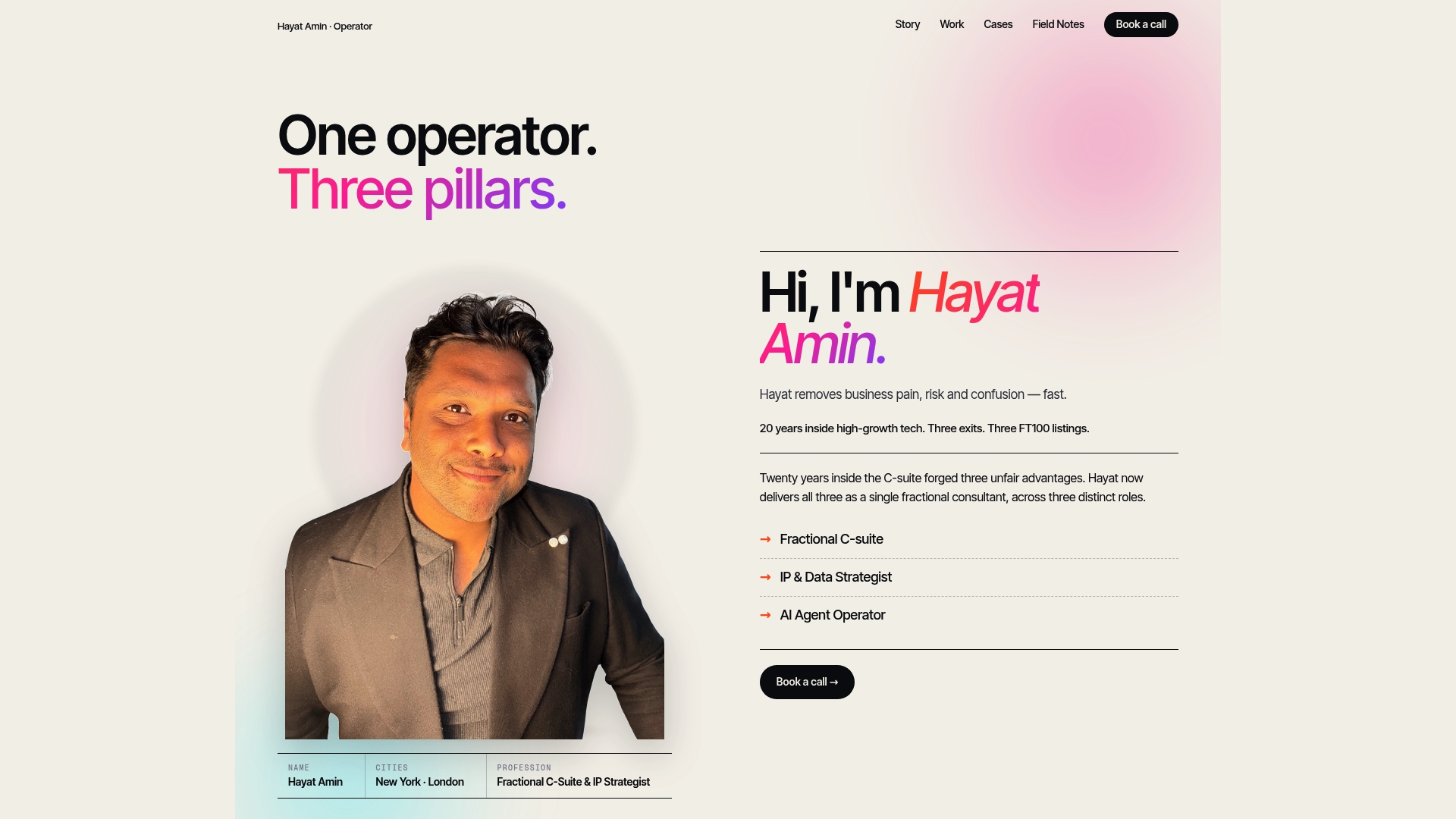
If this guide has clarified what is involved but the configuration still feels like a significant drain on your time, that is exactly the problem Meethayat is built to solve. As an AI agent operator with a background as a three-times exited CFO, Hayat Amin designs and deploys AI scheduling agents for SMEs that are configured correctly from day one. No trial-and-error, no half-built automations, and no assistants that embarrass you in front of clients. If your business needs a reliable, production-ready AI scheduler that fits your actual workflow, the AI agent operator service at Meethayat is the practical next step.
FAQ
How do I set up an AI scheduling assistant?
Connect your calendar and email via OAuth authentication, allow the tool to learn from your recent history, configure your scheduling constraints manually, and run in draft-review mode for at least two weeks before enabling autonomous sending.
What do the best AI scheduling assistants do automatically?
They extract scheduling data from emails and attachments to propose, book, and reschedule meetings without requiring structured input, adapting to your preferences over time.
How do I automate recurring meeting scheduling?
Use cron-based automations within your AI tool to trigger scheduling tasks at fixed intervals, such as sending weekly availability or prompting follow-ups, shifting the assistant from reactive to proactive.
Is it safe to give an AI assistant access to my work email?
With proper OAuth configuration and, where necessary, a self-hosted deployment, the risk is manageable. Review the tool’s data storage policy and ensure it complies with any sector-specific regulations relevant to your business.
When should I hire an expert rather than self-configure?
If your scheduling spans multiple team members, involves complex multi-step workflows, or if initial setup attempts have produced persistent errors, working with a specialist in AI agent deployment will save more time than it costs.